고정 헤더 영역
상세 컨텐츠
본문
728x90
Hey everyone 🙋♀️
Today, I’m introducing a function that may seem unfamiliar,
but it’s incredibly useful for automation and debugging in real-world Excel tasks:
the CELL function! 😎
✅ What is the CELL function?
CELL helps you:
👉 Extract metadata or properties of a cell — like its address, row, column, format, file name, and more.
It’s not for retrieving “data,” but rather for getting info about the cell itself!
📐 Basic Syntax
=CELL(info_type, [reference])
- info_type: The type of information to return (e.g., "address", "row", "filename")
- [reference]: The cell you want to inspect (if omitted, it uses the current cell)
Example 1) Get the address of a cell 🧭
=CELL("address", A5)
👉 Returns: $A$5
Gives you the absolute reference of cell A5 as text.

Example 2) Get the current row number 🔢
=CELL("row")
👉 Returns the row number of the cell where the formula is written.
(If this is in B7, the result is 7)
You can also get the column number with:
=CELL("col", C3) → Result: 3


Example 3) Get full file path and sheet name 📄
=CELL("filename")
👉 Example result:
C:\Users\Me\Documents\[Workbook.xlsx]Sheet1
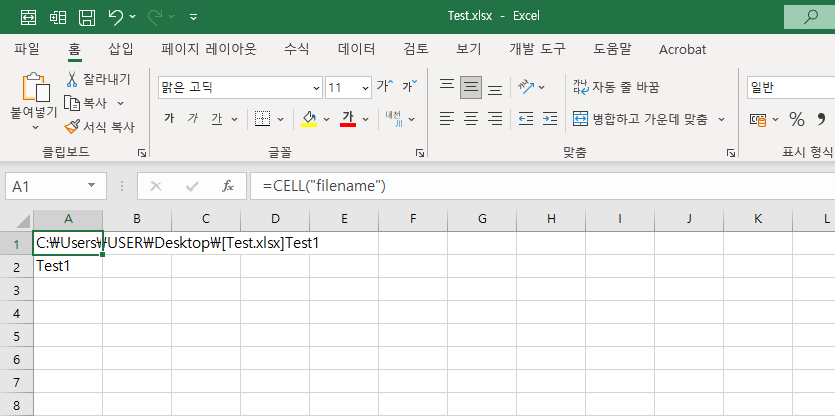
※ Note: this only works after the file is saved!
💡 Want just the sheet name? Try this formula:
=RIGHT(CELL("filename"),LEN(CELL("filename"))-FIND("]",CELL("filename")))
👉 This extracts only the sheet name from the full file path.

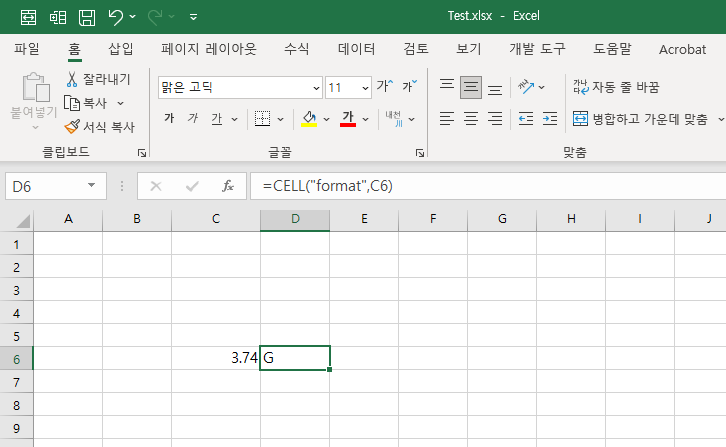
Example 4) Check the cell format 🎨
=CELL("format", A1)
This returns format codes like:
- "G": General
- "F0": Number with no decimals
- "F2": Number with 2 decimal places
- "D4": Date format (e.g., YYYY/MM/DD)
※ Advanced use — helpful for debugging or conditional formatting triggers!
📌 Common info_type values for CELL
CodeDescription
| "address" | Cell address (e.g., $B$3) |
| "row" | Row number |
| "col" | Column number |
| "filename" | Full path + file name + sheet |
| "contents" | Cell contents (the value) |
| "format" | Format code |
✅ Summary
The CELL function is perfect for:
✔ Getting row/column positions
✔ Showing file name or sheet name dynamically
✔ Document metadata automation
✔ Conditional formatting / validation / debugging
You might not use it every day,
but when you do need cell-level info, it’s a must-have in your toolbox 😎
Next time I’ll introduce related functions like INFO, TYPE, and ISBLANK.
Until then, happy Excel-ing! 💻💚
728x90
'Excel' 카테고리의 다른 글
| エクセル関数のヒント 🍯|CELL関数でセルの情報を取得しよう!🔍 (2) | 2025.07.30 |
|---|---|
| 엑셀 함수 꿀팁 🍯 | 셀의 정보를 가져오는 CELL 함수 정복하기! 🔍 (2) | 2025.07.30 |
| Excel便利ワザ 🍯|ROW関数で自動ナンバリング&応用テクニック完全マスター!🔢 (0) | 2025.07.23 |
| Excel Tips 🍯 | Mastering ROW Function for Auto Numbering + Advanced Tricks! 🔢 (3) | 2025.07.23 |
| 엑셀 꿀팁 🍯 | ROW 함수로 넘버링 자동화 + 고급 활용까지! 🔢 (0) | 2025.07.23 |


