고정 헤더 영역
상세 컨텐츠
본문
728x90
Hey everyone 🙋♀️
Today, let’s talk about a function that seems simple,
but once you know it, it becomes a real game-changer —
the ROW function! 😎
Personally, whenever I need to do numbering like 1, 2, 3, 4...
I don’t type it manually or use =A1+1.
I always go with ROW() because it's neat, automatic, and super flexible 🙌
✅ What is ROW?
The ROW function is really straightforward:
👉 It returns the row number of a cell — either where the formula is entered, or a specified cell.
Basic usage:
=ROW()
→ Returns the row number of the current cell.
=ROW(A5)
→ Returns 5 — since A5 is in the 5th row.

Example 1: Simple auto-numbering 🔢
Column A (No.)
| =ROW() |
| =ROW() |
| =ROW() |
| ... |
If you fill =ROW() from A1 to A10:
👉 You get 1, 2, 3, 4... all the way down automatically.
So easy, and perfect for quick numbering! 😄

Example 2: Start numbering from a specific row 🎯
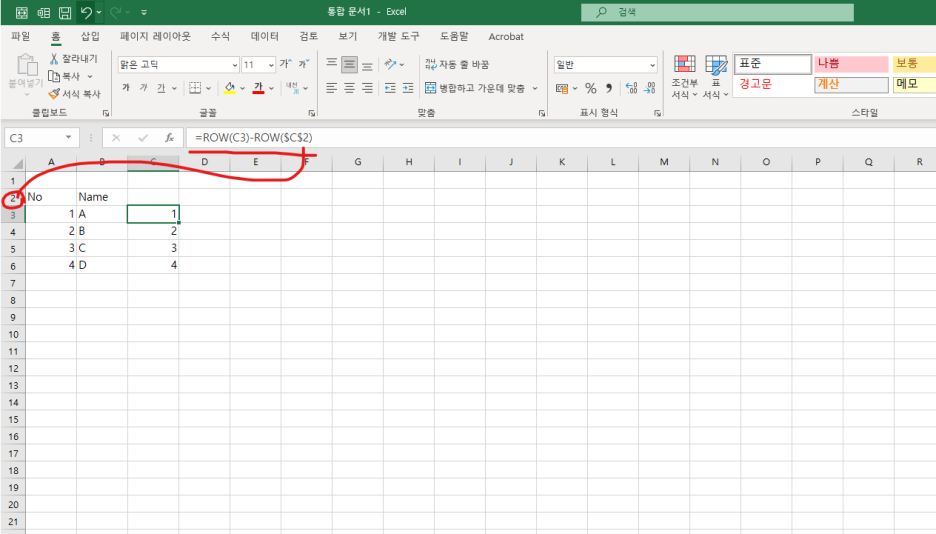
Let’s say your table starts in row 3,
but you still want your numbering to begin at 1.
=ROW() - 2
- A3 → ROW() = 3 → 3 - 2 = 1
- A4 → 4 - 2 = 2
- A5 → 5 - 2 = 3 …
👉 You can shift the numbering to fit any starting row!
Perfect for skipping headers or extra rows at the top 👍

Example 3: Get the row number of a specific cell
=ROW(A6)
👉 Result: 6
This gets the row number of A6, even if the formula is written somewhere else.
※ Reminder: =ROW() refers to the current cell,
while =ROW(Ax) gets the row number of a specified cell.
Example 4: Generate cell addresses like “A6” using ROW + COLUMN + CHAR 🔡
Sometimes you need to build cell addresses as text, like A6, B7, C8, etc.
Here's how to generate that dynamically:
=CHAR(64 + COLUMN()) & ROW()
🔍 Explanation:
- COLUMN() returns the column number (A=1, B=2, etc.)
- CHAR(64 + COLUMN()) converts the number to a letter (65 = "A", 66 = "B", etc.)
- ROW() returns the current row number
So in cell B3:
- COLUMN() = 2 → CHAR(66) = "B"
- ROW() = 3
👉 Result: "B3"
💡 You can use this in rows or columns:
Column A (Generated Address)
| =CHAR(64+COLUMN())&ROW() → A1 |
| Drag down → A2, A3, A4... |
| Drag right → B1, C1, D1... |
Combine with INDIRECT() to dynamically reference cells!


📌 When to use ROW?
✅ For auto-numbering
✅ With INDEX / MATCH / INDIRECT combos
✅ For calculating offsets in repeat formulas
✅ As part of array formulas or conditional formatting
👉 Simple, but super practical in real-world spreadsheets!
✅ Final Recap
FormulaWhat it does
| =ROW() | Returns the current row number |
| =ROW() - n | Adjusts starting point for numbers |
| =CHAR(64 + COLUMN()) & ROW() | Creates cell reference like "A6" |
ROW is a small but mighty tool.
📌 From basic numbering to dynamic references and formulas — it plays a key role in Excel automation! 💪
Next time, I’ll show you tricks using COLUMN, MOD, SEQUENCE, and more.
Stay tuned, and happy Excel-ing! 💻💚
728x90
'Excel' 카테고리의 다른 글
| 엑셀 함수 꿀팁 🍯 | 셀의 정보를 가져오는 CELL 함수 정복하기! 🔍 (2) | 2025.07.30 |
|---|---|
| Excel便利ワザ 🍯|ROW関数で自動ナンバリング&応用テクニック完全マスター!🔢 (0) | 2025.07.23 |
| 엑셀 꿀팁 🍯 | ROW 함수로 넘버링 자동화 + 고급 활용까지! 🔢 (0) | 2025.07.23 |
| エクセル平均関数 🍀 | AVERAGEとAVERAGEIFSの使い分け ✨ (0) | 2025.07.19 |
| Excel Average Functions 🍀 | AVERAGE vs AVERAGEIFS ✨ (0) | 2025.07.19 |


