✂️ Excel LEFT, RIGHT, MID Function Mastery: The Art of Text Extraction
- When you want to extract characters from the beginning, end, or middle of a string in Excel, which function do you use?These are must-know, fundamental functions when analyzing data or breaking down strings. In this post, we’ll organize the differences and usage of these 3 text functions through their basic structure and practical examples.📌 Basic structure:
- text: The target string
- num_chars: Number of characters to extract from the left
- excel
LEFT(text, num_chars) - 🅰️ 1. LEFT function: Extract from the beginning of a string
- That’s right! The ones we’ll introduce today are the LEFT, RIGHT, and MID functions.

=LEFT(D4,4)
In this case, it displays the first 4 characters from the left.
📌 Notes
| Whitespace included | Spaces are counted in the character length |
| Hyphen (-), Slash (/) | Symbols are also treated as characters |
| Mixed languages (Korean/English) | Character count may vary, use LEN to check |
🔚 2. RIGHT function: Extract from the end of a stringexcel
RIGHT(text, num_chars)
- text: The target string
- num_chars: Number of characters to extract from the right
- 📌 Basic structure:

=RIGHT(D4,4)
In this case, it shows the last 4 characters from the right.
🔍 3. MID function: Extract from the middle of a stringexcel
MID(text, start_num, num_chars)
- text: The target string
- start_num: Starting character position (starts at 1)
- num_chars: Number of characters to extract
- 📌 Basic structure:

In this case:
=MID(target, start_position, end_position)
is what’s used.
🔁 LEFT/RIGHT vs MID comparison
| LEFT | From start | Extracting front part of product code, birth date |
| RIGHT | From end | Extracting file extension, last digits, etc. |
| MID | From middle | Extracting middle codes, ID numbers, emails |
💡 Other helpful functions to use together
- LEN() – Counts total characters
- FIND(), SEARCH() – Finds the position of specific characters
- TEXT() – Formats dates or numbers into text
Now, as an example often used in practice,
When working in real environments, the length of text we want to extract may differ.
In such cases, it’s important to identify a unique key in the pattern.

If, for example, you need the number between the slashes / /, you can combine several functions.
Use MID and FIND (or SEARCH).
We’ll cover the FIND and SEARCH functions in a separate post.
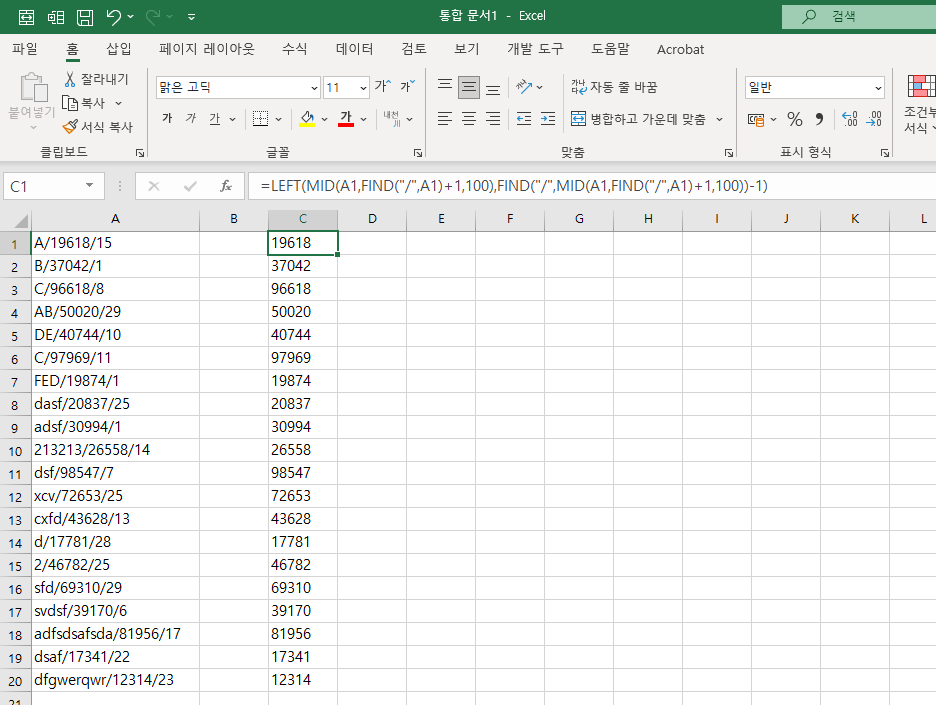
=LEFT(MID(A1,FIND("/",A1)+1,100),FIND("/",MID(A1,FIND("/",A1)+1,100))-1)
To explain this function:
First, use the MID function:
MID(A1,FIND("/",A1)+1,100)
→ This means “find / in A1, move one character forward, and extract up to 100 characters.”
This will return:
19618/15
Now, what we want is 19618, so we use the LEFT function:
LEFT(MID(A1,FIND("/",A1)+1,100) ← This returns 19618/15
FIND("/",MID(A1,FIND("/",A1)+1,100))-1 ← This finds the slash in 19618/15 and cuts one character to the left
It may look complicated at first, but once you understand Excel logic, it’s really not so hard.
In Excel, what’s more important than the function itself is understanding whether the data you’re given is structured consistently enough to extract what you need.
The LEN function counts the number of characters in a string.
If you have any ideas or questions while using this, feel free to leave a comment.